Display Properties on Your AI Studio Website
Create a real estate website with the AI Studio, add your Work247 property widget with a ready-made prompt, connect your own domain and publish your listings.
4 min read
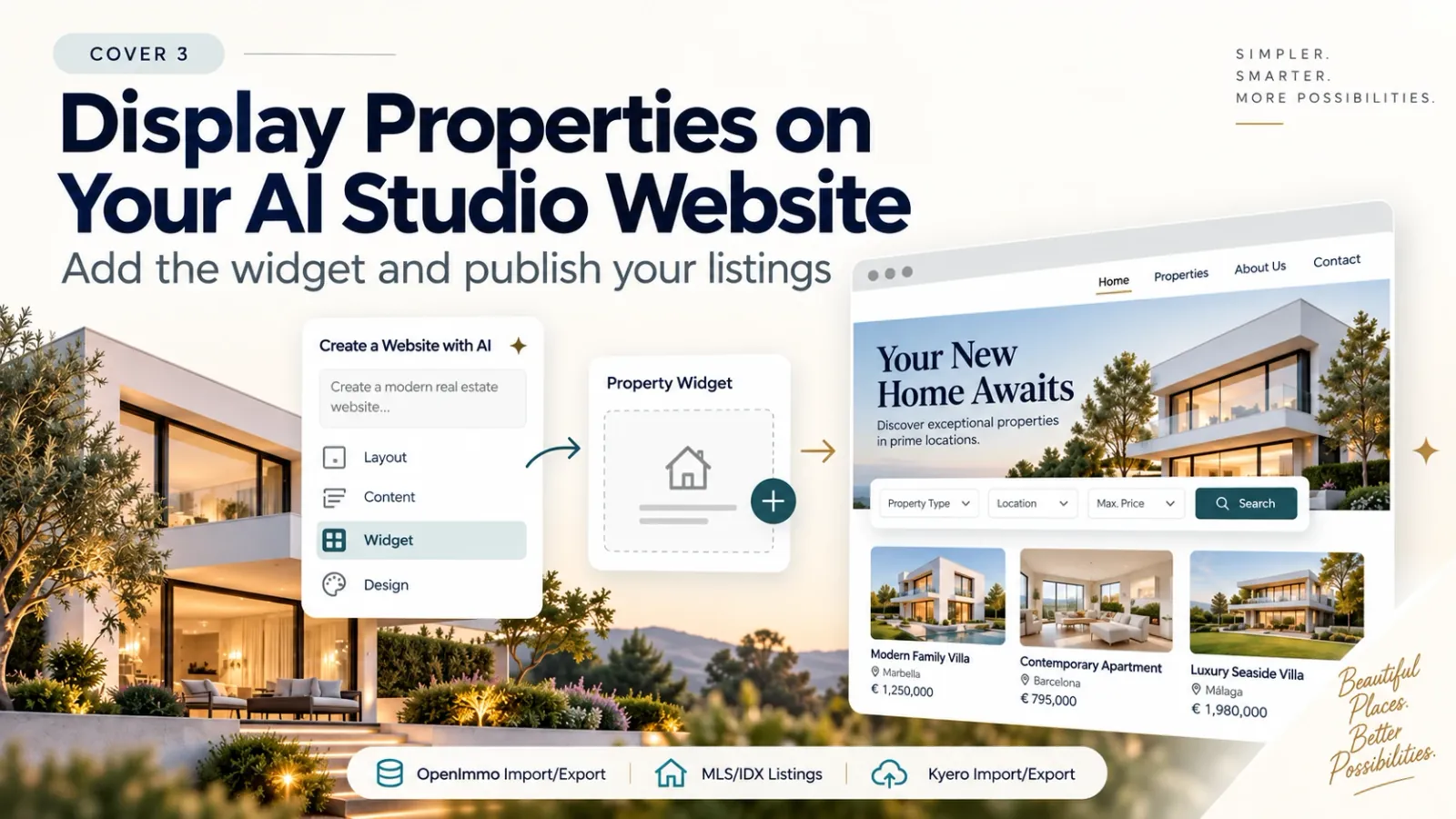
You don't need a web designer to get a professional real estate website. With the AI Studio you describe the website you want, refine layout, content and design – and add your live property listings with the Work247 widget. This guide shows you how.
1. Create your website with AI
Open the AI Studio and describe your website, for example “a modern real estate website for a brokerage in Austin with home page, properties, about us and contact”. Then adjust layout, content and design until the site looks the way you want.
2. Connect your domain in Work247
- 1In Work247, open “Settings → Website settings” and enter the domain you will publish on.
- 2Choose “AI Studio / other website”. Work247 shows a one-time code and a ready-made prompt that inserts the verification meta tag.
- 3Paste the prompt into the AI Studio so the tag is added to your site.
3. Add the property widget
- 1Create or open your property widget under “Website widgets” – gallery, list, map with list or any other view.
- 2Copy the AI Studio prompt from the widget's embed codes.
- 3Paste it into the AI Studio on the page where your listings should appear, e.g. “Properties”. The prompt adds the widget correctly – including clean loading when visitors move between pages.
4. Publish with your own domain
Click “Publish” in the AI Studio and enter your domain without “www” or “https://”. With many domain providers the connection works automatically: click “Authorise domain”, sign in with your provider and confirm with “Connect” – the DNS records are set for you. Then wait a few minutes while DNS and SSL are set up. If your provider is not supported, enter the DNS records shown in your provider’s DNS settings.
Then return to the website settings in Work247 and click “Check domain now”. As soon as the domain is verified, your widgets show your live listings.
What you get
- Listings that update themselves whenever your portfolio changes.
- Property detail pages with structured data for search engines.
- Enquiries that land in your CRM as contacts, linked to the property.
- Optionally an MLS search, a valuation form and a search request form on the same site.